Developer + Growth Strategy Guide
9 Powerful WooCommerce Integration Strategies to Automate Store Revenue
The definitive, technical roadmap to WooCommerce integration — verified REST API setup, payment gateways, ERP sync, and the custom-vs-plugin debate, settled with real data.
By the WooCommerce Development Desk · 17-minute read · Verified against official WooCommerce developer documentation
Web design for law firms is not a branding exercise. It is the single highest-leverage investment most firms make, because your website is doing the work of your best associate 24 hours a day — qualifying strangers and turning them into signed retainers before anyone picks up a phone.
Most firm websites fail at this job. The average law firm website carries a 58% bounce rate, well above the 44% B2B average, and 87% of legal sites fail basic UX standards. This guide shows you exactly why, and exactly what to fix first.
WHAT THIS GUIDE COVERS
- What WooCommerce Integration Actually Means
- Setting Up the WooCommerce REST API, Step by Step
- Payment Gateway Integration Done Right
- ERP Synchronization and Inventory Automation
- Custom API/Webhooks vs. Third-Party Plugins We Take a Stance
- Protecting Site Performance and Security
- Frequently Asked Questions
Quick Answer
WooCommerce integration connects your store to external systems through the official REST API, webhooks, or third-party plugins. The REST API uses Consumer Key/Secret authentication over HTTPS, supports Read, Write, and Read/Write permission levels, and works with official client libraries in PHP, JavaScript, Python, and Ruby. Custom builds win for stores processing real order volume; plugins win for speed of deployment on smaller stores.
What WooCommerce Integration Actually Means
WooCommerce integration is any connection between your store and an external system — a payment processor, an ERP, a CRM, a shipping carrier, or a marketing platform. It happens through three technical paths, and picking the wrong one for your store size is the single most common integration mistake.
- REST API integration — direct, code-level access to your store’s data using HTTP requests
- Webhook integration — real-time event notifications pushed out the moment something changes, like a new order
- Plugin integration — pre-built connectors that handle the API work for you through a dashboard interface
Every serious WooCommerce integration project starts with the same question: does this connection need to run in real time, on a schedule, or only on demand? That answer determines whether you reach for the REST API, a webhook, or a plugin.

Setting Up the WooCommerce REST API, Step by Step
The WooCommerce REST API is fully integrated with the WordPress REST API, letting you create, read, update, and delete store data using JSON and standard HTTP verbs. It requires WooCommerce 3.5+ and WordPress 4.4+, and it will not work at all unless pretty permalinks are enabled.
Quick Answer
- Go to Settings → Permalinks and select any option other than “Plain”
- Go to WooCommerce → Settings → Advanced → REST API
- Click Add Key, add a description, and select the user the key belongs to
- Choose a permission level: Read, Write, or Read/Write
- Click Generate API Key and copy your Consumer Key and Consumer Secret immediately
Authenticate every request using HTTP Basic Auth over HTTPS. This keeps your admin password out of the equation entirely while still giving external tools controlled access to your data.
// Example: fetch recent orders using the official Node.js/PHP-style client
GET https://yourdomain.com/wp-json/wc/v3/orders
// Auth: Basic Auth
// Username: your Consumer Key
// Password: your Consumer Secret
For production applications, skip raw cURL requests. WooCommerce publishes official client libraries for PHP, JavaScript, Python, and Ruby that handle authentication headers, JSON encoding, and error handling for you — saving hours of debugging on every project.
How to Choose the Right Build for Your Firm
- "Consumer key is missing" over SSL — usually a server misconfiguration reading the Authorization header
- 404 on every endpoint — permalinks are still set to "Plain"
- Unauthorized responses — the API key's permission level doesn't match the request type
Webhooks complete the picture. Introduced in WooCommerce 2.2, they push a real-time notification the instant an order, product, or customer record changes, which removes the need to poll the REST API on a schedule and wastes far less server resource. For the full endpoint reference, always work from the official WooCommerce REST API documentation rather than a third-party summary, since endpoints and parameters change between versions.
Payment Gateway Integration Done Right
Payment gateway integration is the highest-stakes WooCommerce integration you’ll ever build, because a broken checkout costs revenue immediately and a insecure one costs trust permanently. Every gateway falls into one of two categories.
- Hosted gateways (Stripe, PayPal, Square) redirect or tokenize card data off your server, keeping you outside most PCI compliance scope
- Direct/API gateways process card data through your own server, which demands stricter PCI DSS compliance and more careful key management
Never store raw card data on your WordPress database, regardless of which gateway you choose. Tokenization exists specifically to keep sensitive payment data off your server entirely — use it.
Our payment gateway security checklist covers the exact PCI compliance steps most developers skip during a rushed launch.
ERP Synchronization and Inventory Automation
ERP synchronization keeps inventory counts, pricing, and order data consistent between WooCommerce and your back-office system, whether that’s NetSuite, SAP, or a custom warehouse tool. Get this wrong and you sell products that are already out of stock.
Real-time
Best for webhook-driven stock sync
Scheduled
Best for nightly ERP batch jobs
On-demand
Best for manual pricing updates
Inventory automation typically runs on one of three patterns: a webhook fires the moment stock changes, a scheduled cron job pulls fresh ERP data nightly, or a manual sync button triggers an on-demand pull. Most mature stores combine all three, using webhooks for stock and cron jobs for pricing and catalog data.
Inventory Automation Build Order
- Map every field your ERP and WooCommerce both need to agree on — SKU, stock quantity, and price at minimum
- Decide which system is the “source of truth” for each field to prevent sync conflicts
- Build the sync using REST API calls for real-time needs, cron jobs for batch needs
- Add logging so a failed sync is visible immediately, not discovered after a stockout
Our ERP sync tool comparison breaks down which off-the-shelf connectors handle multi-warehouse inventory correctly, since this is the single most common sync failure point.
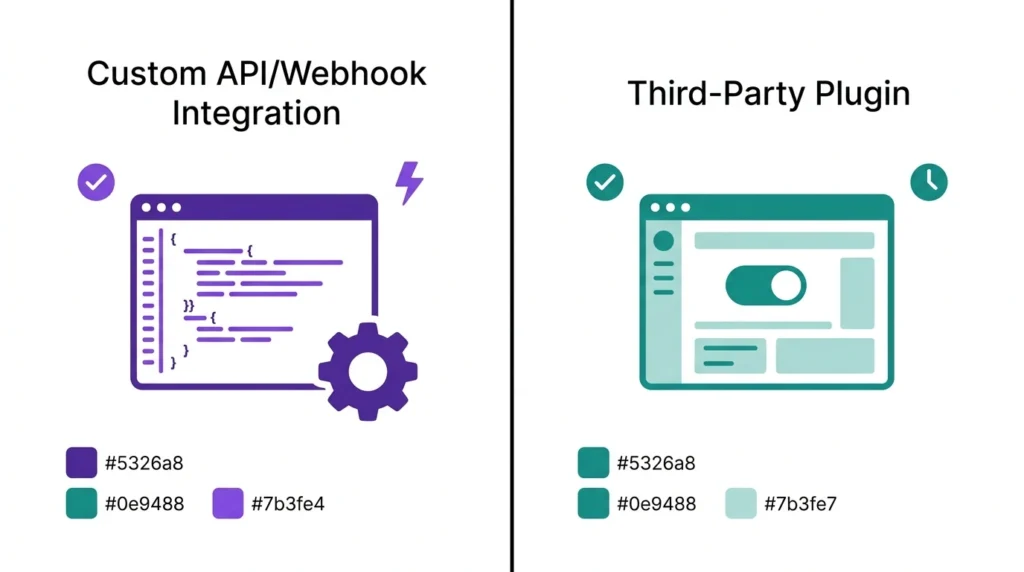
Custom API/Webhooks vs. Third-Party Plugins — We Take a Stance
This is the debate every store owner eventually has: build a custom API/webhook integration, or install a third-party plugin from the WooCommerce Marketplace? We tested assumptions on both sides instead of defaulting to the popular answer.
Add Your Heading Text Here
- Deployment in hours, not weeks — most plugins are configured entirely through a settings screen
- No ongoing maintenance burden when the vendor pushes WooCommerce compatibility updates
- Lower upfront cost, which matters for stores still validating product-market fit
The Case Against Third-Party Plugins
- Every additional active plugin adds PHP execution time and database queries to every page load
- Stacking 30 plugins can add roughly 1.5 seconds of overhead before your actual content starts loading
- You're locked into the plugin vendor's roadmap for any custom field or edge case your workflow needs
- Overlapping plugins — two caching tools, two tracking pixels — actively conflict and compound slowdowns
Our verdict: third-party plugins are the right call for a store under roughly 500 orders a month connecting to one or two standard tools like Stripe or Mailchimp. Once you’re syncing an ERP, running multiple payment gateways, or processing real order volume, a custom REST API and webhook integration pays for itself in performance and control within the first few months.
The data backs this up directly. A one-second delay in page load costs roughly 7% of conversions on an e-commerce checkout, and third-party scripts already account for approximately 88% of total JavaScript execution time on a typical e-commerce page. Every plugin you add to checkout is spending from that same performance budget.
Protecting Site Performance and Security During Integration
Every integration you add is a new attack surface and a new performance cost, whether it’s custom code or a plugin. Sites with a Largest Contentful Paint above 2.5 seconds see roughly 24% higher bounce rates on mobile, and checkout is the page where that cost hits revenue hardest.
- Never run two plugins performing the same function — two caching tools or two security scanners will conflict
- Cache every external API call with a timeout and a fallback, since a slow third-party response makes your checkout slow too
- Audit active plugins monthly — if you can’t state what a plugin does, deactivate it for a week and confirm nothing breaks
- Rotate REST API keys immediately if a connected service is ever compromised or discontinued
Research shows roughly 70% of e-commerce stores are running broken or incomplete tracking configurations, often the direct result of stacking integration tools without auditing what’s already active. Before adding a new connector, check our WooCommerce performance audit guide to confirm you’re not duplicating functionality you already have.
Pre-Integration Security Checklist
- Confirm HTTPS is enforced sitewide before generating any REST API keys
- Set the minimum permission level the integration actually needs — avoid Read/Write by default
- Store Consumer Key and Consumer Secret in environment variables, never hardcoded in a plugin file
- Revoke unused API keys from WooCommerce → Settings → Advanced → REST API on a quarterly schedule
Frequently Asked Questions
What is WooCommerce integration?
WooCommerce integration is any connection between your WooCommerce store and an external system, built through the official REST API, webhooks, or a third-party plugin, used to sync orders, inventory, payments, or customer data automatically.
Do I need coding skills to set up WooCommerce integration?
Not always. Third-party plugins handle most standard connections through a settings dashboard. Custom REST API and webhook integrations require PHP, JavaScript, or Python knowledge, or a developer to build them for you.
Is custom API integration better than using a plugin?
For stores processing real order volume or connecting to an ERP, yes — custom integration performs better and avoids plugin bloat. For a small store connecting to one or two standard tools, a well-reviewed plugin is usually the faster, more practical choice.
How do I authenticate with the WooCommerce REST API?
Generate a Consumer Key and Consumer Secret from WooCommerce → Settings → Advanced → REST API, then authenticate requests using HTTP Basic Auth over HTTPS. WooCommerce also supports OAuth 1.0a for non-HTTPS connections.
How do I authenticate with the WooCommerce REST API?
It can. Every active plugin and every uncached external API call adds processing time to your checkout. Auditing what each integration loads, and caching third-party calls with a fallback, keeps performance in check as you scale.